Last update date: April 10, 2023
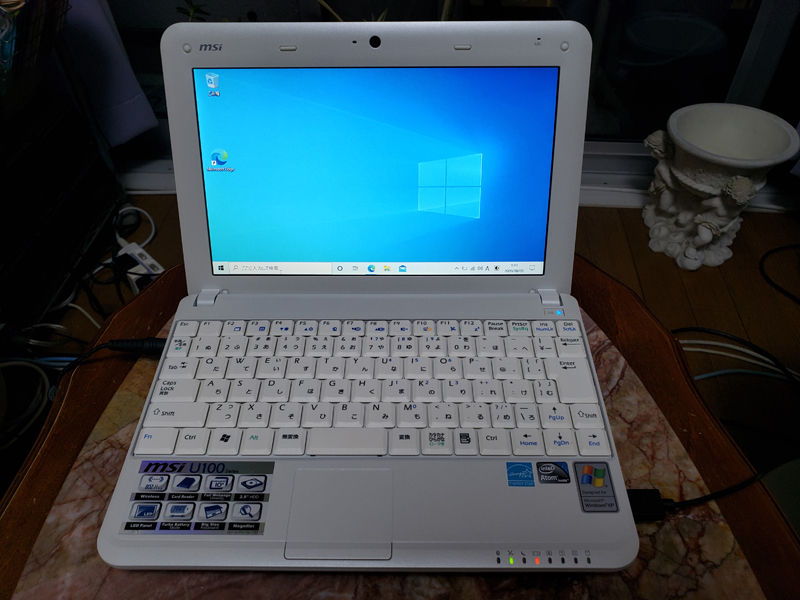
I received an old laptop from a friend who told me that since I didn't need it, I could boil it, bake it, or do whatever I wanted with it.
That is the notebook computer "Wind Netbook U100" manufactured by MSI of Taiwan, which was released about 10 years ago.
Since the OS is Windows XP, support from Microsoft has ended and the Internet cannot be used properly.
Unfortunately, Windows XP can only use the communication protocol up to TLS 1.0, which is no longer supported, so you cannot access modern SSL encrypted websites (TLS 1.2/1.3).
The encryption protocol in the XP era was SSL 2.0/TLS 1.1, but modern websites are encrypted using TLS 1.2 or higher protocols, so most websites cannot be viewed from Internet Explorer, the standard browser for Windows XP.
So, as expected, I don't need a Win XP computer either...😓
However, in the unlikely event that Windows 10 runs on this laptop, I will be able to use the internet for the time being, so I decided to try installing Windows 10 on this laptop, albeit recklessly.
About Windows 10 system requirements
Just to be sure, we investigated whether the specs of MSI U100 match the operating conditions of Windows 10 and summarized them in the comparison table below.
As a result, the memory is at the limit, but it seems that the installation requirements are met for the time being.
Please note that Microsoft does not officially support the method of immediately installing Windows 10 over Vista/7/8/8.1 on Windows XP, so you must back up your computer in advance and do so at your own risk.
Of course, you can't upgrade, so you'll have to install Win 10 with a clean install.
| device | Windows 10 system requirements | MSI Wind Netbook U100 specs |
|---|---|---|
| processor | 1 GHz or faster processor or SoC | Intel Atom N270 1.58 GHz (32 bit) |
| RAM | 1 GB (32 bit) or 2 GB (64 bit | 1GB |
| HDD free space | 16 GB (32-bit OS) or 20 GB (64-bit OS | 160GB (or 80GB) |
| graphics card | DirectX 9 or higher and WDDM 1.0 driver | WDDM 1.0 |
| display | 800 x 600 | 1024×600 |
Create Windows 10 media
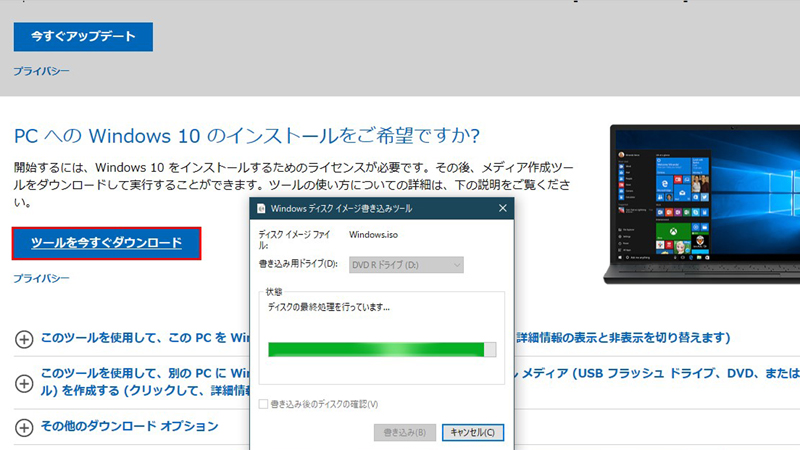
First, create the media necessary for installation.
Prepare a blank DVD-R DL (8.5GB/single-sided, dual-layer) disc in advance.
Download the tool for installing Windows 10 from the Microsoft site below.
🔗 Windows 10 download
Once downloaded, select "Use this tool to create installation media to install Windows 10 on another PC."
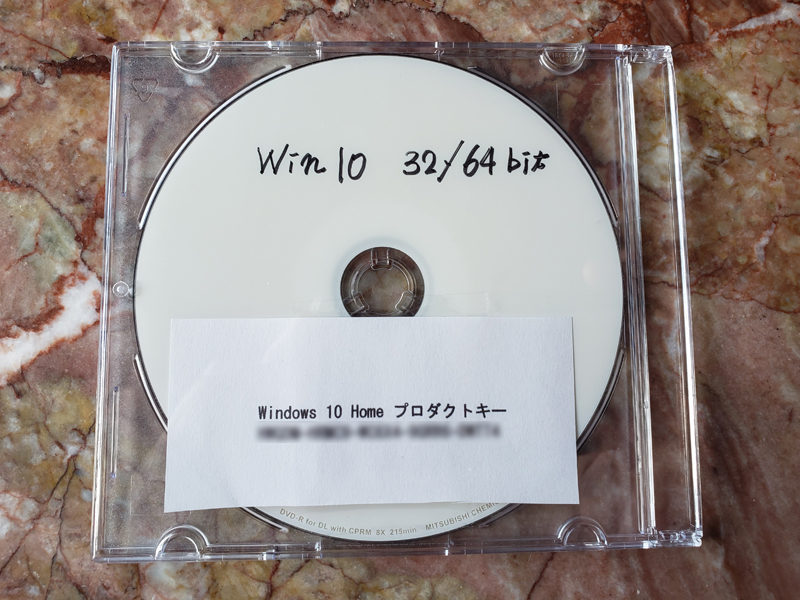
This time, I used a tool to create an ISO file and create the following "Win 10 32/64 bit" installation DVD disc.
In addition, considering the speed, booting from a USB memory is recommended, but it seems that booting from a USB memory cannot be specified in the BIOS settings of this PC.
Install Windows 10
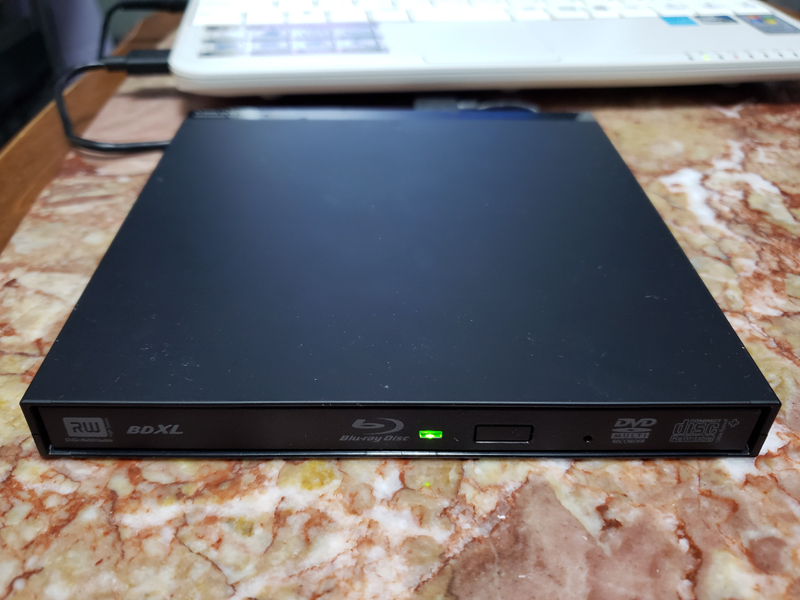
The laptop U100 does not have a DVD drive, so connect your external DVD (+Blu-ray) drive to the U100 via USB.
With the U100 shut down, insert the Windows 10 installation disc into the DVD drive and press the power button on the U100.
Since I did not take any screenshots for the following steps, I will only explain the installation steps in text.
(1) When the MSI logo is displayed, press the F11 button to call up the Boot menu and select "#1 [USB CD/DVD Rom]" to switch to booting from DVD.
The Windows 10 installation screen will be displayed from the DVD drive.
* Install "Windows 10 Home 32bit".
(2) Select the keyboard type and language and click "Next".
(3) Click "Install now".
The message "Starting setup" will be displayed, so please wait for a while.
(4) On the Windows license authentication screen, select "I don't have a product key" and proceed with the installation.
(5) On the "Select the operating system you want to install" screen, select "Windows 10 Home x32" and click "Next"
(6) On the “Applicable Notices and License Terms” screen, check “I agree” and click “Next”
(7) On the "Select installation type" screen, click "Custom: Install Windows only"
(8) On the "Choose where you want to install Windows" screen, select "Drive 0 Partition 2" (C drive) without formatting it and click "Next" (since this is a clean installation, it is normal to format it)
(9) On the “Windows Setup” screen, click “OK”
If you install without formatting, the previous Windows data will be saved in Windows.old if there is enough space.
This file takes up a considerable amount of space, so if the installation is successful and it is no longer needed, it is a good idea to delete it on Windows 10 at a later date.
After that, the installation of Windows 10 will begin and you will proceed to the screen below.
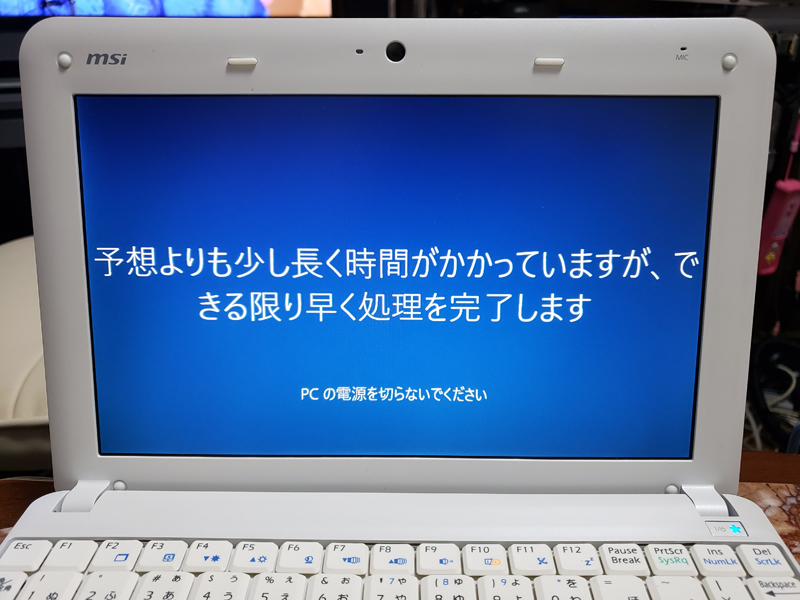
In order to make the installation easier this time, we avoided signing in with a Microsoft account and instead allowed you to log in with a local account without a password.
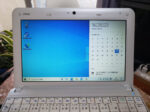
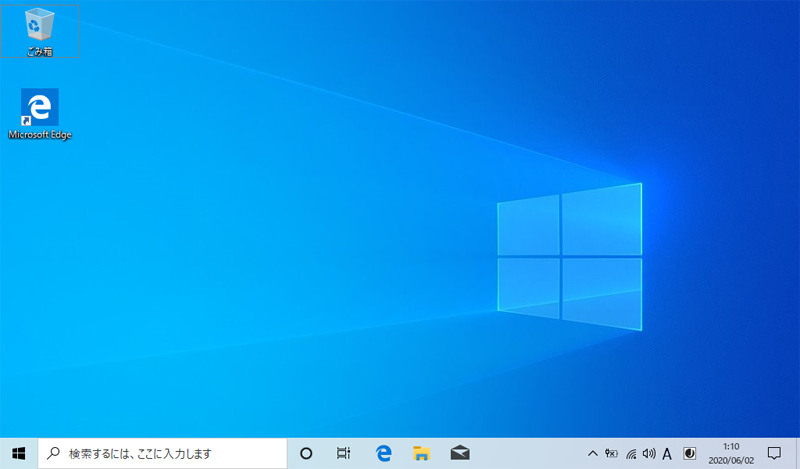
It may be a miracle, but I was able to successfully install Windows 10, and the following desktop screen was displayed.
Windows 10 activation
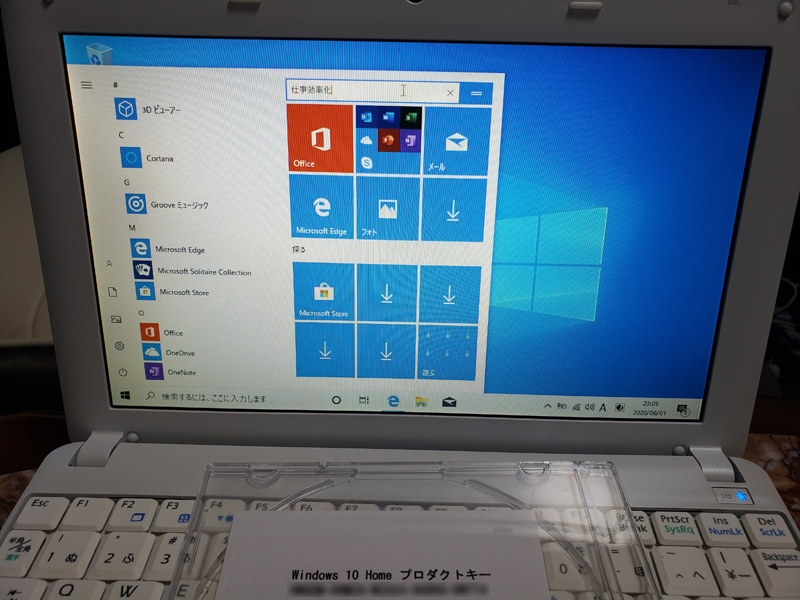
If there are no problems installing Windows 10, purchase a Windows 10 product key online. Microsoft's official version (Windows 10 Home) costs 19,360 yen, but I bought it from Yahoo Auctions for 550 yen. A product key was issued within 1 hour after payment.
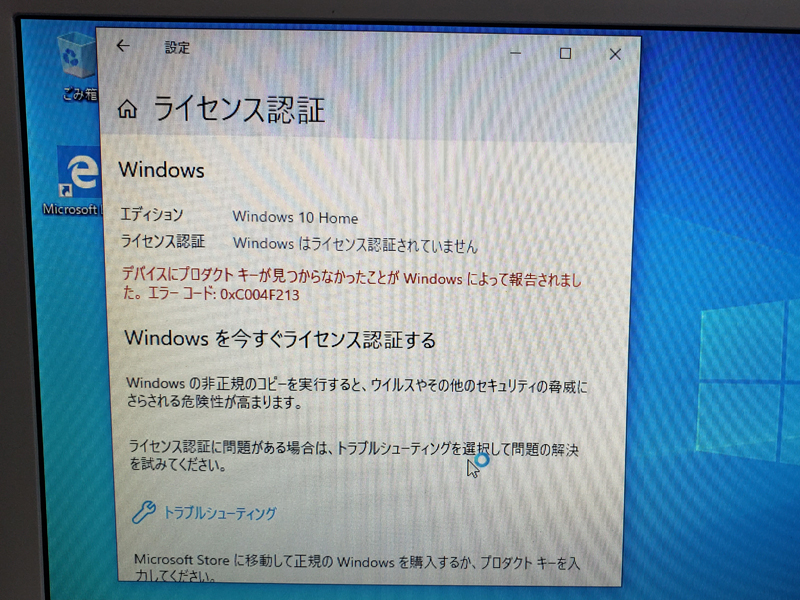
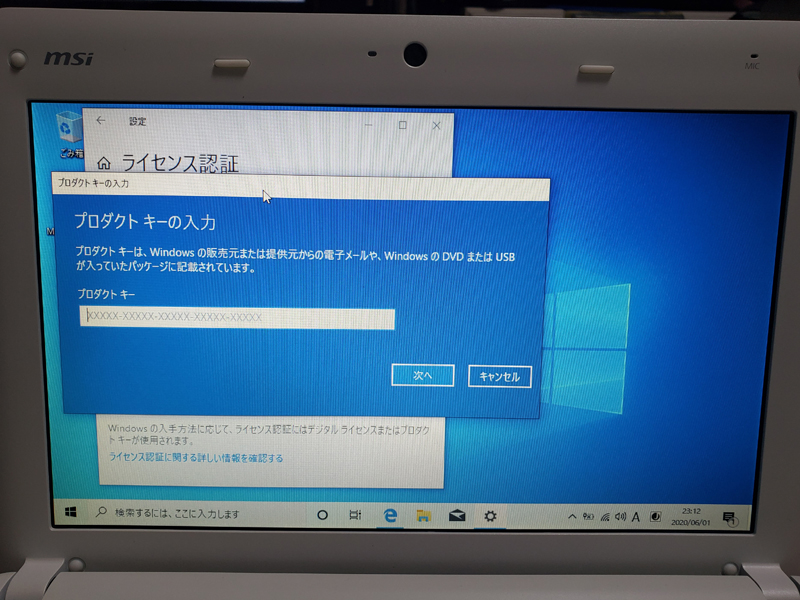
Immediately, from the Windows 10 Start menu, select "Settings" -> "Update & Security" -> "License Activation".
Enter the product key purchased online to activate the license.
When the license is activated, the "Windows is activated" screen will be displayed.

Adding memory
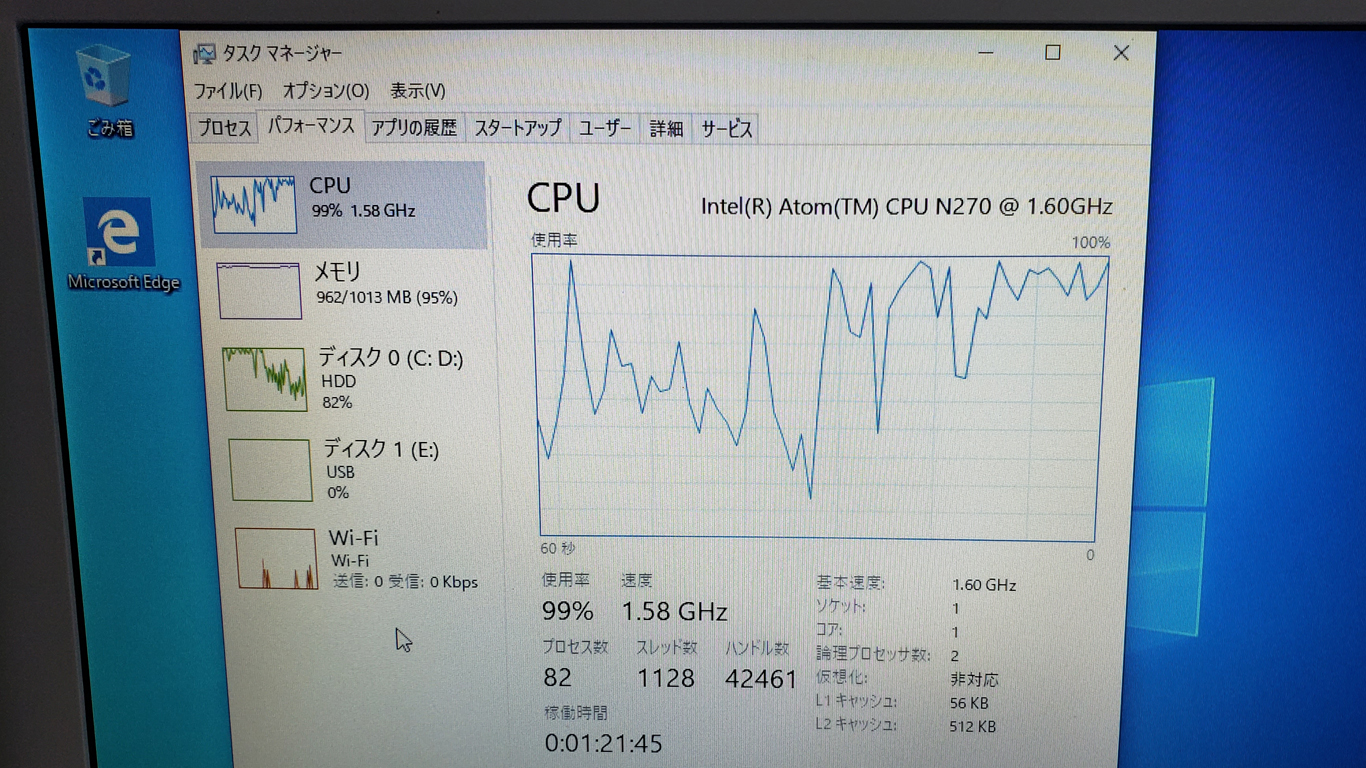
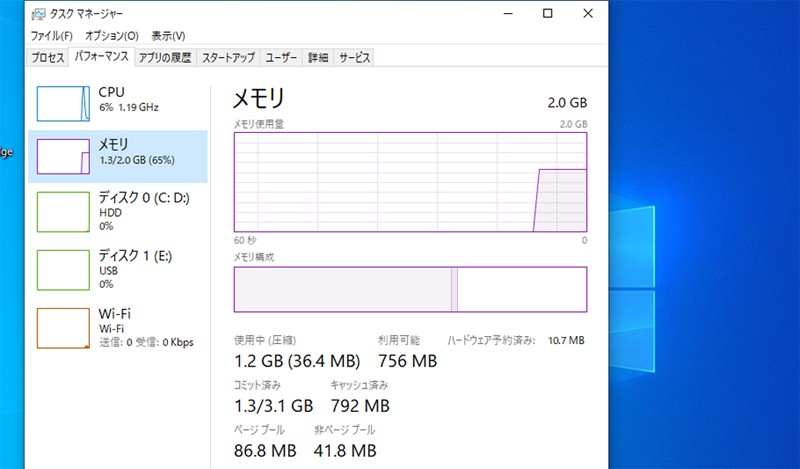
Although I succeeded in installing Windows 10, it is still a heavy burden to run Windows 10 on an XP machine. When I opened the task manager, I found that there wasn't enough memory and it was running in virtual memory mode, so it wouldn't work properly. So, I happened to have a 1GB SO-DIMM card that I had stored at home, so I decided to expand the memory with this memory card.
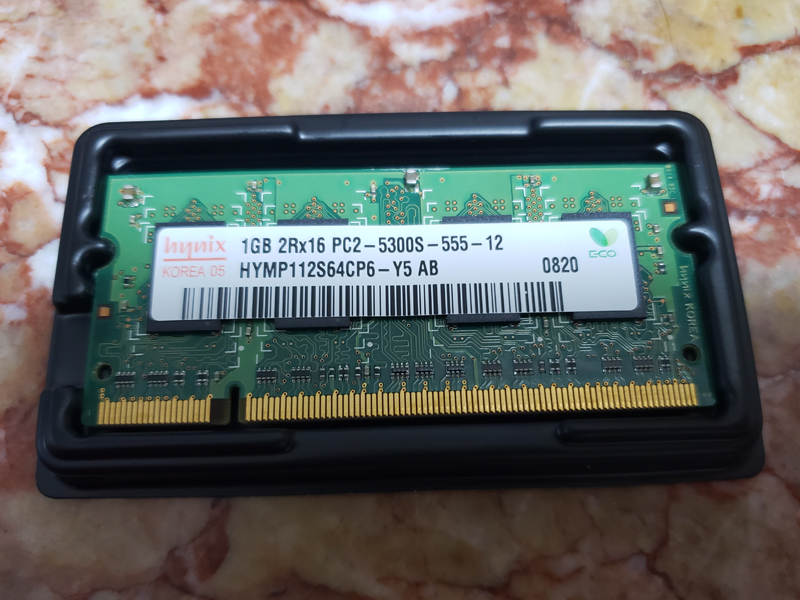
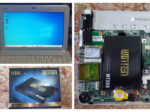
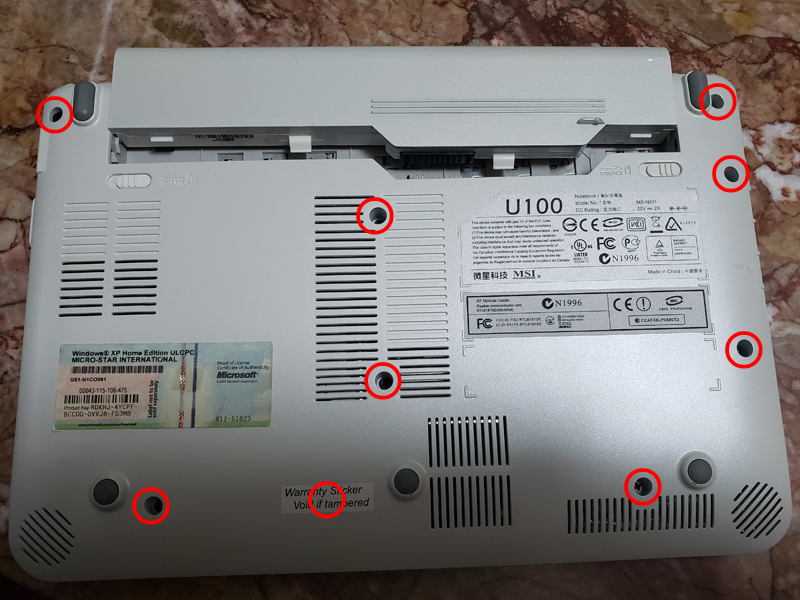
The U100 has 1GB of RAM onboard, and up to 1GB can be expanded from the expansion slot. After removing a total of 9 screws (red circles) on the back cover of the U100, carefully remove the back cover and install the memory.
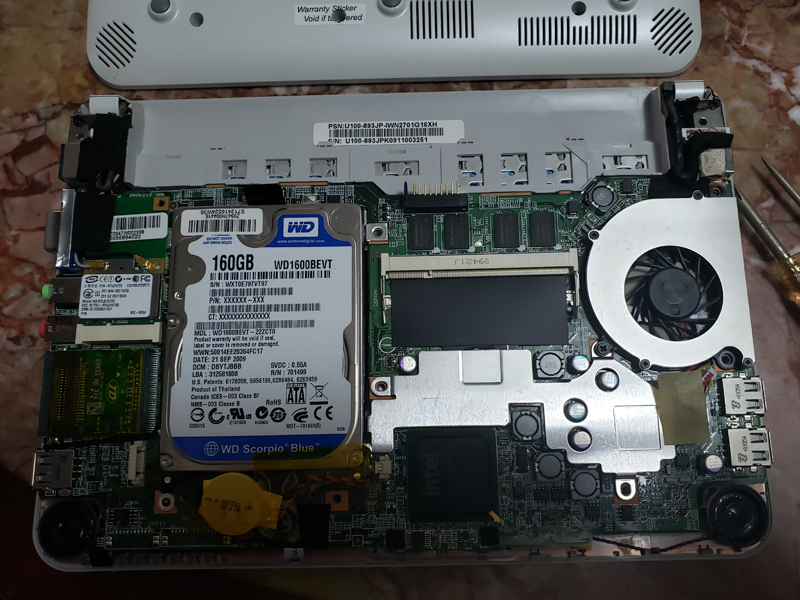
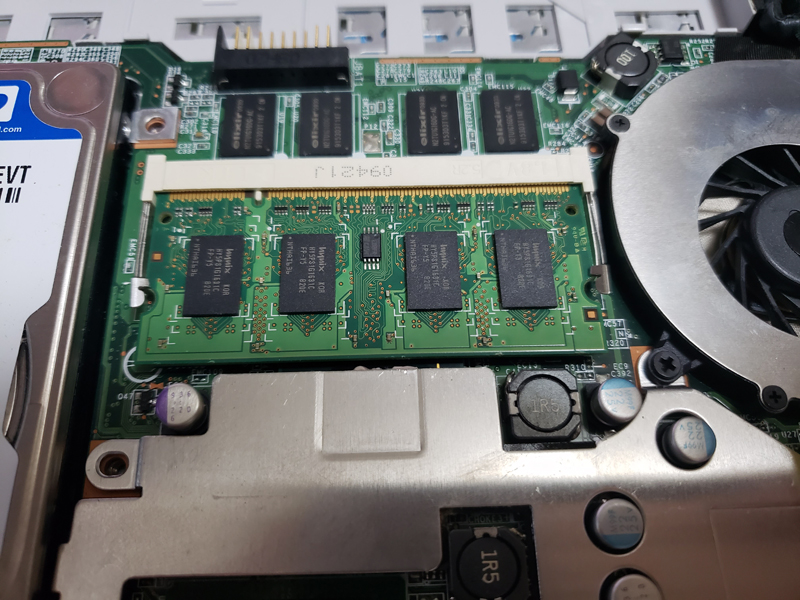
Start Task Manager and check that memory has increased. The memory has increased from 1GB to 2GB!
Wi-Fi connection and browser (Edge) upgrade
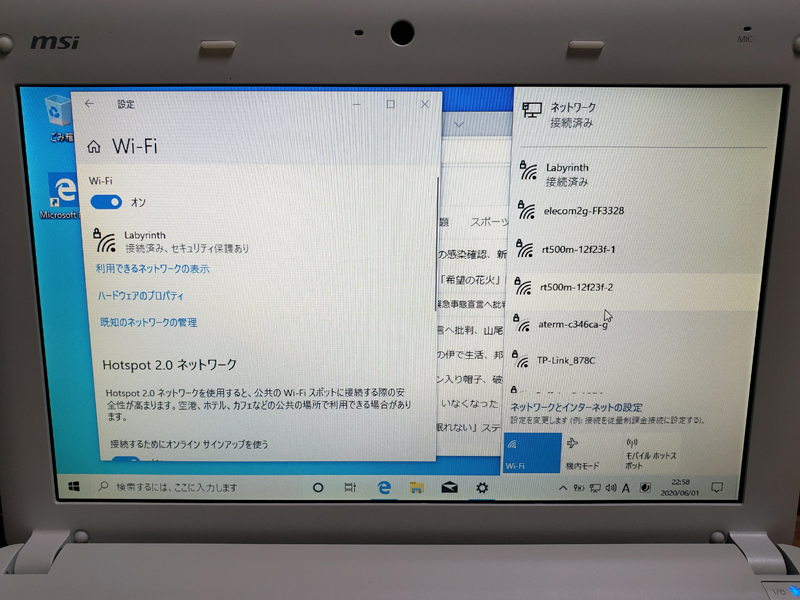
To connect to a wireless LAN with U100, you need to press "Fn+F11" each time using the keyboard.
When I checked the connection, I was able to connect via Wi-Fi without any problems. Of course, you can also connect to wired LAN.
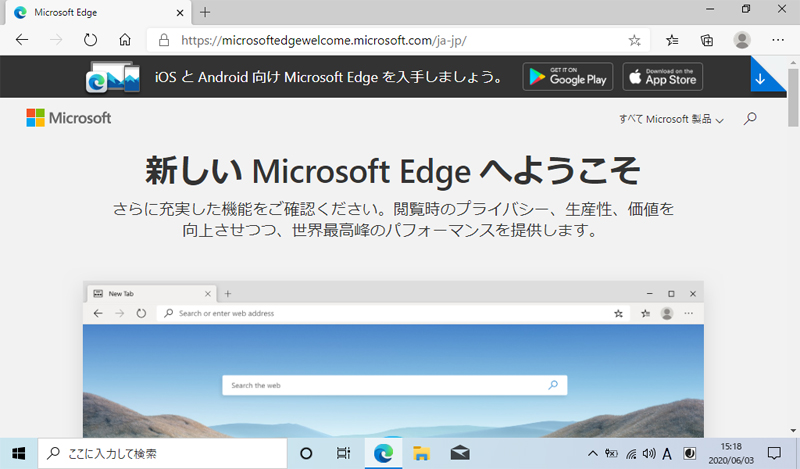
It seems that the Microsoft Edge browser has been updated to the Chromium version of Edge, so I updated it to the latest version (83.0.478.45) from the link below.
Note that the Chromium version of Edge is included in the release of Windows 10 version 21H1 (also known as Windows 10 May 2021 Update), so it is currently installed automatically by Windows Update.
🔗 Welcome to the new Microsoft Edge
I immediately started Edge and tried connecting to the internet, but it takes a long time to open a heavy page like this site that uses a lot of Java Script.
It seems difficult to run Windows 10 on a single-core CPU like the Intel Atom installed in the U100. If you don't have a CPU power of at least Intel Core 2 Duo or higher, you may feel stressed while browsing the internet.
In fact, the core server hosting this site supports TLS 1.3.
For Windows 10, TLS 1.3 (experimental) can be configured from "Network and Sharing Center ⇒ Internet Options ⇒ Advanced Settings". By setting to TLS 1.3, faster and more strongly encrypted communication is possible, so I also changed the Internet settings of Windows 10 to TLS 1.3.
By the way, there is a Bluetooth indicator on the front of the U100, but it seems that this model does not include a Bluetooth module. It doesn't seem to be detected by the Windows installer, and Bluetooth is not registered in Device Manager.
2022.05.24 Added
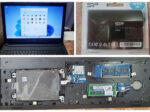
To improve processing speed, I replaced the U100's HDD with an SSD as described in the article below.