最終更新日:2026年7月6日 at 7:12 PM
コロナによる自粛で時間を持て余しているため、以下の通りサーバーのメンテナンスを実施しました。
既に以下リンク先の WordPress のフォーラムにも報告しておりますが、WordPress 5.4 へアップグレードすると、ブラウザ「マイクロソフト・エッジ」において、マルチファイルアップローダが動作しなくなっています。
📎 Unable to Upload Media Files in Microsoft Edge
この問題は、既知のバグとして WordPress 開発チームにもエスカレーションされているようなので、次のバージョン 5.4.1 で修正される見込みです。
しかしながら、この機能が使えないのは、やはり不便なので、以下の修正パッチ(functions.phpへの追記)を充てて、現在このシステムを運用しています。
2020.05.03 更新
このバグは、WordPress 5.4.1 のリリースで解消されました。
/* 【WordPress5.4】マルチファイルアップローダバグ対応 */
function my_admin_media_views_style() {
	if ( wp_style_is( 'media-views' ) ) {
		$style = <<<STYLE
div.moxie-shim.moxie-shim-html5,
div.moxie-shim.moxie-shim-html5 input[type="file"] {
	display: inline;
}
STYLE;
		wp_add_inline_style( 'media-views', $style );
	}
}
add_action( 'admin_enqueue_scripts', 'my_admin_media_views_style' );
カスタム投稿のブロックエディタへの適用
次の問題です。
WordPress 5.4 になって、ブロックエディタ(通称名:Gutenberg)の機能が強化され大変使い易くなったため、新しい投稿は全てブロックエディタに統一しています。 (但し、タグ選択が出来ないのは不便)
ところが、ニュース、ギャラリーなどのカスタム投稿では、便利なブロックエディタが使えませんでした。
そこで、今回はテーマのプログラム「functions.php」に記述された二つの関数(regist_posttype_news, regist_posttype_gallery)を以下のように修正する事により、ブロックエディタでの編集が可能となりました。
それぞれの関数に、計2行を追加します。(パラメータ ‘show_in_rest’ の値を true に設定)
なお、WordPress の世界では、あまり利用者はいない模様ですが、当サイトでは、テーマの PHP プログラムは、ジャストシステム(開発元の日本IBMから2011年に移管)のホームページビルダーを使用しています。
2022.07.28 更新 – 投稿の抜粋も有効に設定する
<?php
}
function regist_posttype_news(){
	register_post_type(
		'news',
		array(
		'label'         => 'ニュース',
		'hierarchical'  => false,
		'public'        => true,
		'has_archive'   => true,
		'supports'      => array(
		'title',
		'editor',
		'thumbnail',
		'comments',
		'excerpt'	// 抜粋を有効
		),
		'menu_position' => 5,
		'show_in_rest'  => true, // ブロックエディタ対応
		'menu_icon'     => get_template_directory_uri() . '/post-types/menu_news.png'
		)
	);

	register_taxonomy(
		'newscat',
		'news',
		array(
		'label'        => 'ニュースのカテゴリー',
		'show_in_rest' => true, // ブロックエディタ対応
		'hierarchical' => true,
		)
	);
}function regist_posttype_gallery(){
register_post_type(
'gallery',
array(
'label' => 'ギャラリー',
'hierarchical' => false,
'public' => true,
'has_archive' => true,
'supports' => array(
'title',
'editor',
'thumbnail',
'comments',
'excerpt' // 抜粋を有効
),
'menu_position' => 5,
'show_in_rest' => true, // ブロックエディタ対応
'menu_icon' => get_template_directory_uri() . '/post-types/menu_user.png'
)
);
register_taxonomy(
'gallerycat',
'gallery',
array(
'label' => 'ギャラリーのカテゴリー',
'show_in_rest' => true, // ブロックエディタ対応
'hierarchical' => true,
)
);
}2026.07.05 更新
以下は、WordPress の最新の仕様に合わせた最新版のスニペットです。ギャラリーとニュースのカスタム投稿タイプをブロックエディタに適用させます。
// 投稿タイプ「ギャラリー」をブロックエディタに適用

function regist_posttype_gallery(){
    register_post_type(
        'gallery',
        array(
            'labels' => array(
                'menu_name'     => 'ギャラリー',     	// 左側の親メニュー名
                'name'          => 'ギャラリー', 	// パンくずリストや大タイトルに使用される名前
                'all_items'     => 'ギャラリー 一覧', 	// 子メニュー1行目
                'add_new_item'  => 'ギャラリーを追加', 	// 子メニュー2行目
                'singular_name' => 'ギャラリー',
            ),
            'hierarchical'  => false,
            'public'        => true,
            'has_archive'   => true,
            'supports'      => array(
                'title',
                'editor',
                'thumbnail',
                'comments',
                'excerpt' // 抜粋を有効
            ),
            'menu_position' => 5,
            'show_in_rest'  => true, // ブロックエディタ対応
            'menu_icon'     => 'dashicons-camera'
        )
    );

    register_taxonomy(
        'gallerycat',
        'gallery',
        array(
            'label'        => 'ギャラリーのカテゴリー',
            'show_in_rest' => true, // ブロックエディタ対応
            'hierarchical' => true,
        )
    );
}
add_action( 'init', 'regist_posttype_gallery' );


/* 管理画面一覧にギャラリーのカテゴリを表示 */
function manage_gallery_columns( $columns ) {
//	$columns['fcategory'] = 'ギャラリーのカテゴリー';
	$columns['gallery_category'] = 'ギャラリーのカテゴリー';
	return $columns;
}

function add_gallery_column( $column_name, $post_id ){
	if ( 'gallery_category' == $column_name ) {
		$fcategory = get_the_term_list( $post_id, 'gallerycat', '', '、' );
		if ( $fcategory ) {
			echo $fcategory;
		} else {
			echo __( 'None', '_hpb' );
		}
	}
}

add_filter( 'manage_edit-gallery_columns', 'manage_gallery_columns' );
add_action( 'manage_gallery_posts_custom_column', 'add_gallery_column', 10, 2 );

/* 管理画面のヘッダーにスマホ用のCSSのみを出力 */
add_action('admin_head', 'plugin_header_gallery');

function plugin_header_gallery() {
    $screen = get_current_screen();

    // ギャラリー 一覧画面のときだけ実行
    if ( isset($screen->post_type) && $screen->post_type === 'gallery' ) {
        ?>
        <style>
            /* スマホ表示(782px以下)で「ギャラリーのカテゴリー」列を非表示にする */
            @media (max-width: 782px) {
                .fixed .column-gallery_category {
                    display: none;
                }
            }
        </style>
        <?php
    }
}


// 投稿タイプ「ニュース」をブロックエディタに適用

function regist_posttype_news(){
    register_post_type(
        'news',
        array(
            'labels' => array(
                'menu_name'     => 'ニュース',     // 左側の黒い親メニュー名
                'name'          => 'ニュース',     // パンくずリストや大タイトルに使用される名前
                'all_items'     => 'ニュース一覧', // 子メニュー1行目だけを書き換え
                'add_new_item'  => 'ニュースを追加', // 子メニュー2行目
                'singular_name' => 'ニュース',
            ),
            'hierarchical'  => false,
            'public'        => true,
            'has_archive'   => true,
            'supports'      => array(
                'title',
                'editor',
                'thumbnail',
                'comments',
                'excerpt' // 抜粋を有効
            ),
            'menu_position' => 5,
            'show_in_rest'  => true, // ブロックエディタ対応
            'menu_icon'     => 'dashicons-megaphone'
        )
    );

    register_taxonomy(
        'newscat',
        'news',
        array(
            'label'        => 'ニュースのカテゴリー',
            'show_in_rest' => true, // ブロックエディタ対応
            'hierarchical' => true,
        )
    );
}
add_action( 'init', 'regist_posttype_news' );


/* 管理画面一覧にニュースのカテゴリを表示 */
function manage_news_columns( $columns ) {
//	$columns['fcategory'] = 'ニュースのカテゴリー';
	$columns['news_category'] = 'ニュースのカテゴリー';
	return $columns;
}

function add_news_column( $column_name, $post_id ){
	if ( 'news_category' == $column_name ) {
		$fcategory = get_the_term_list( $post_id, 'newscat', '', '、' );
		if ( $fcategory ) {
			echo $fcategory;
		} else {
			echo __( 'None', '_hpb' );
		}
	}
}

add_filter( 'manage_edit-news_columns', 'manage_news_columns' );
add_action( 'manage_news_posts_custom_column', 'add_news_column', 10, 2 );


/* 管理画面のヘッダーにスマホ用のCSSのみを出力 */
add_action('admin_head', 'plugin_header_news');

function plugin_header_news() {
    $screen = get_current_screen();

    // ニュース一覧画面のときだけ実行
    if ( isset($screen->post_type) && $screen->post_type === 'news' ) {
        ?>
        <style>
            /* スマホ表示(782px以下)で「ニュースのカテゴリー」列を非表示にする */
            @media (max-width: 782px) {
                .fixed .column-news_category {
                    display: none;
                }
            }
        </style>
        <?php
    }
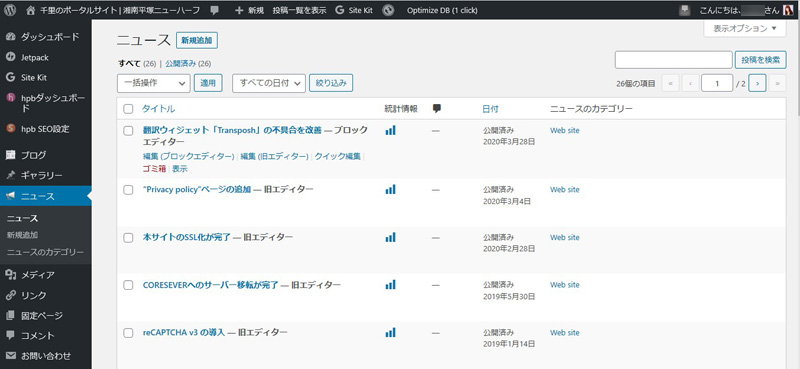
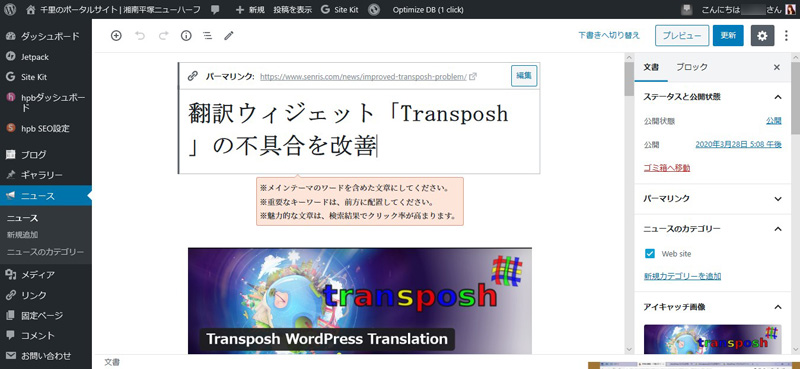
}これにより、以下のようにニュースの記事がブロックエディタで編集できるようになりました! 😀
imagick のインストール
2020.05.03 追記
imagick のインストール
この問題は、備忘録として残しておきます。
コアサーバーにおいて、標準のPHP設定では、画像処理ライブラリ ImageMagick を PHP から呼び出すモジュール imagick がインストールされていません。
そのため、Jetpack のサイトヘルスを実行すると、以下に示す「1つ以上の推奨モジュールが存在しません」のワーニング画面が表示されます。
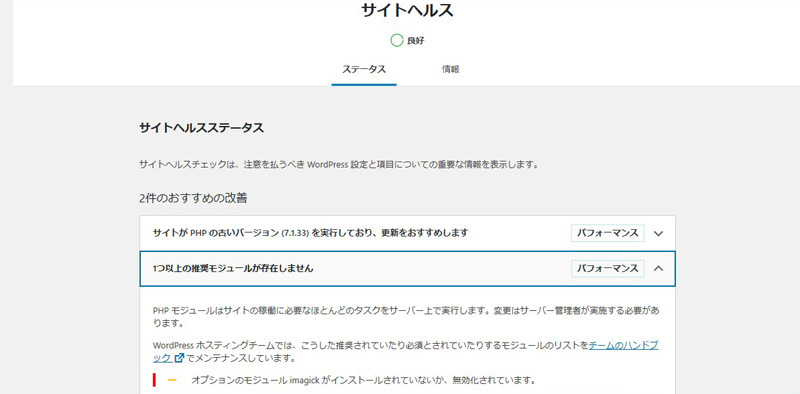
この問題は、以下のパスにあるコアサアーバーの php.ini ファイル(php7.1)に拡張モジュールの定義を追加する事で解決します。
public_html\fast-cgi-bin\php71.ini
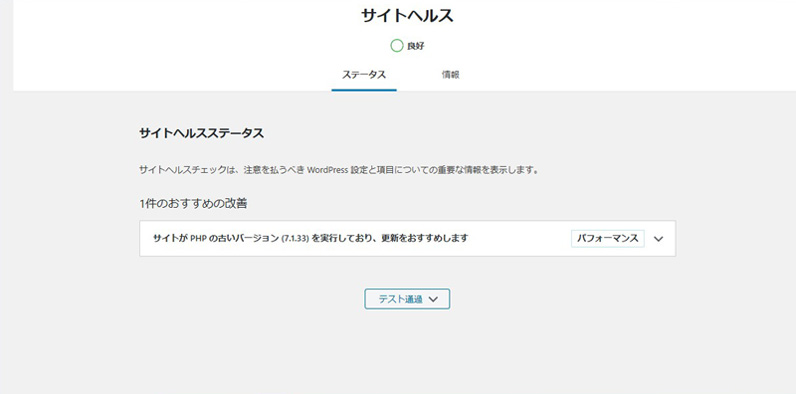
extension = imagick.sophp.ini を修正後、暫く経って、サイトヘルスを実行すると、以下にように「1つ以上の推奨モジュールが存在しません」のワーニングが消えます。
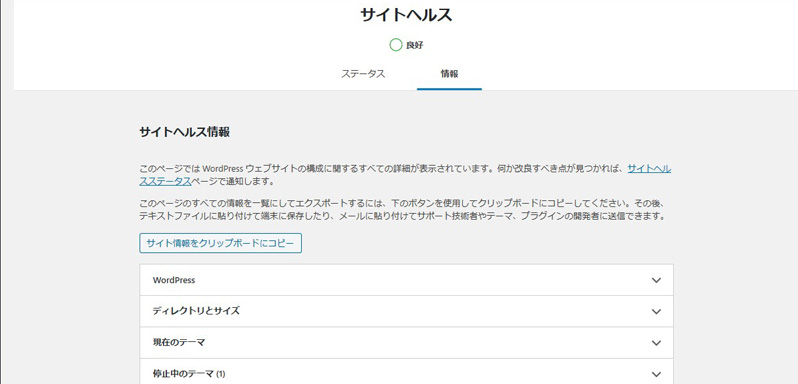
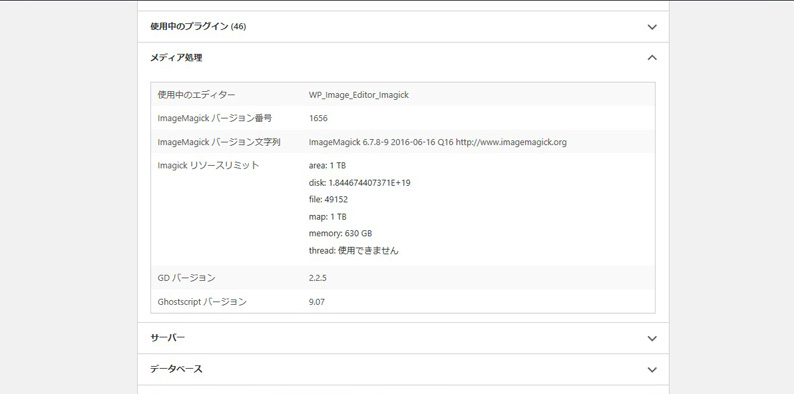
サイトヘルスの画面で「情報」⇒「メディア処理」を選択すると、以下のように ImageMagick が組み込まれている事が確認できます。
👉 記事に関連する商品をオンラインショップで探す